
Windows Confirmation ID activation
Request a Windows Confirmation ID with your valid product key and Installation ID. No account or SubscriptionIndia purchase is needed. Follow the illustrated guide to find the correct information and apply the result to your PC.
Get your Windows Confirmation ID.
No account or SubscriptionIndia purchase is required. You need a valid product key and the Installation ID from the PC you want to activate.
Up to 3 new requests per hour per connection/browser, subject to daily service capacity. Your key must be eligible for this activation service.
Prefer to activate directly with Microsoft?
Open Microsoft’s official activation portal ↗. This is a separate route and requires a valid license.
Before you start
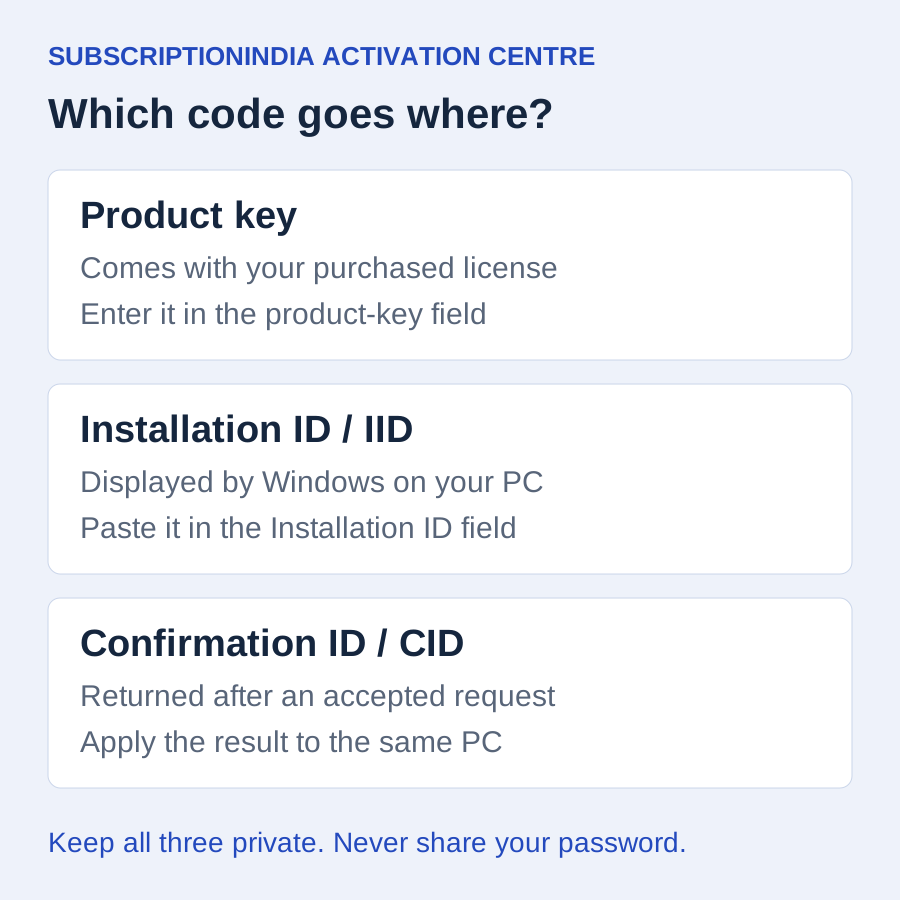
Check that your Windows edition matches your purchase: Home and Pro keys are not interchangeable. Keep the order reference and activation error available. A product key, Installation ID and Confirmation ID serve different purposes; never paste your product key into an Installation ID field.
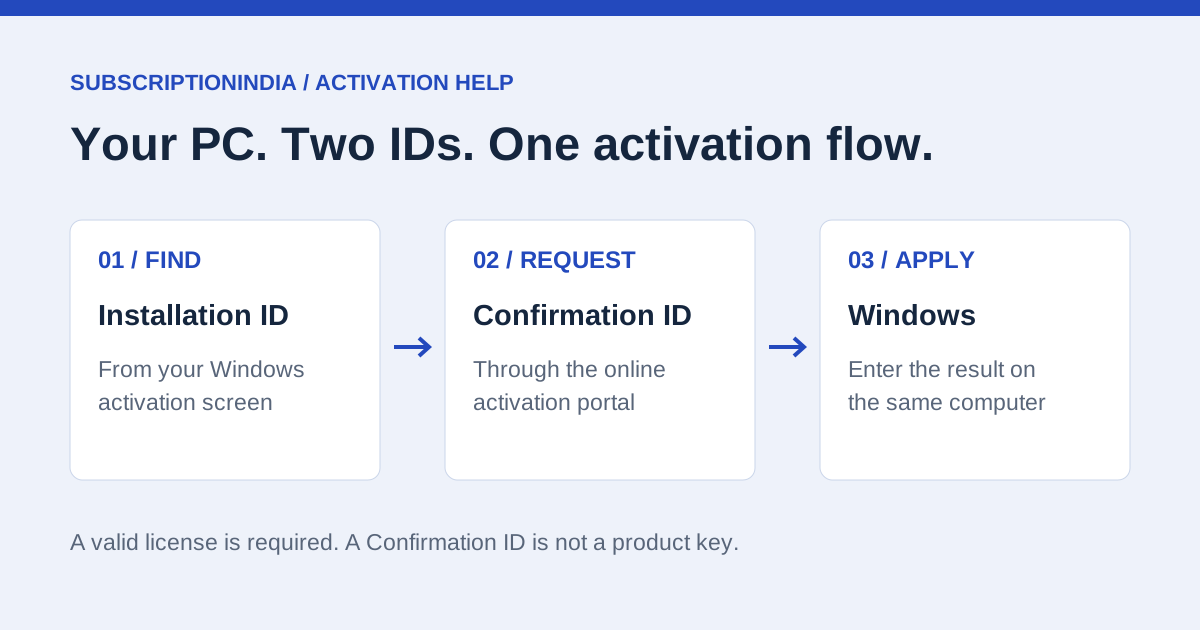
1. Find your Installation ID
In Windows 11, open Settings → System → Activation. Look for Automated Help; older builds may show Activate by Phone. That is an older interface label, not an instruction to call. If the option is absent, open Command Prompt as administrator and run slmgr /dti to display the Installation ID.
2. Request a Confirmation ID online
Use the activation form above. Enter your eligible product key and the Installation ID from your PC, read the processing disclosure and submit once. If accepted, your Confirmation ID appears in eight labelled groups. No account or purchase from SubscriptionIndia is required. Keys may have supplier-specific eligibility and request limits. Microsoft’s official activation portal is available through the alternative link.
3. Apply the result to the same PC
Return to Windows activation and enter the returned Confirmation ID. If you used the command-line method, Microsoft's instructions use slmgr /atp followed by your actual CID without spaces or hyphens. Check Settings → System → Activation afterward. Do not reuse an example code or another computer's result.
Activation error or rejected ID?
Recheck the installed edition and the ID from that computer. Run the Windows Activation troubleshooter where available. Used-on-another-device, blocked-key and volume-license errors need the appropriate seller or organization support; repeatedly requesting a CID does not resolve license entitlement problems. Share a redacted error screenshot and your order reference with support, not your password or full product key.
Does CID activation make a license transferable?
No. Activation method and license rights are separate. The CID options listed in this store specify one initial activation on one PC and do not guarantee reactivation after formatting. Check the selected product option before purchase. Do not infer retail-transfer rights from a successful activation.
Is this a free Windows product key?
No. This guide does not supply a product key or grant Windows usage rights. Use your valid digital license or purchased key for the correct edition. Microsoft determines whether an activation request is eligible.
Do I need to telephone Microsoft?
Microsoft's current guidance routes the former automated telephone process to the online Product Activation Portal. Older Windows screens and supplier SKU names may still use telephone terminology. This page describes the online Confirmation ID workflow.
Can I use this for Office?
This tutorial is scoped to Windows. Office activation menus and subscription licensing differ. Do not apply Windows commands to Office; use the relevant official product instructions or ask support about your exact edition.
What if a key is rejected or the request times out?
A rejected key may be incorrect or may already have used its request allowance. If the result is uncertain, do not repeatedly submit it. Contact support with your order reference; we can investigate the request without asking you to post the complete key publicly. A page load or HTTP success does not by itself mean activation succeeded.
Protect your activation information
Only submit a key you are entitled to activate. The form sends your key and Installation ID to an external activation service identified in our privacy policy. We do not save the submitted product key. Public requests retain non-reversible keyed fingerprints for duplicate prevention and an encrypted CID linked to your browser session. Do not post activation information in reviews or public support messages.
Sources and further reading
Official reference 1 ↗Official reference 2 ↗Official reference 3 ↗Official reference 4 ↗Shop the products in this guide.
Windows 11 Pro — entitlement details →Windows 11 Home — entitlement details →Office 2024 Professional Plus LTSC — entitlement details →Ready to compare the details?
Check product pages for edition, license and activation details before buying.
Shop software →Ask a question